1. display : inline-block
inline속성과 block속성의 특징을 모두 가짐.
inline요소에 margin /padding을 적용하면서 좌측배열로 배치하기위해서 사용함.
<style>
        div{background-color: #d8d8d8;}
        a{display:inline-block; margin:10px; }
</style>

<div>
        <a href="#">text1_1</a> <a href="#">text1_2</a> <br>
        <a href="#">text2_1</a> <a href="#">text2_2</a> <br>
        <a href="#">text3_1</a> <a href="#">text3_2</a> <br>
        <a href="#">text4_1</a> <a href="#">text4_2</a> <br>
</div>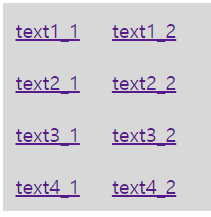
2. vertical-align : baseline / sub / super / top / text-top / middle / bottom / text-bottom
inline속성들끼리의 수직정렬을 조절하기위한 속성.
아래 예시에서처럼 icon과 text간의 수직정렬을 맞출 수 있다.
<style>
    svg, span{vertical-align: middle;}
</style>

<svg width="24" height="24" fill="none" class="TimeDealSecctionViewController__TimerIcon-sc-1gu4944-1 jQVpob" viewBox="0 0 24 24"><path fill-rule="evenodd" clip-rule="evenodd" d="M22 5.72l-4.6-3.86-1.29 1.53 4.6 3.86L22 5.72zM7.88 3.39L6.6 1.86 2 5.71l1.29 1.53 4.59-3.85zM12.5 8H11v6l4.75 2.85.75-1.23-4-2.37V8zM12 4.5A8.5 8.5 0 003.5 13c0 4.694 3.797 8.5 8.5 8.5a8.5 8.5 0 000-17z" fill="#f33340"></path></svg>
<span>타임딜</span>
3. line-height : 행간을 나타내는 속성
* 박스의 height와 line-height를 일치시키면 text가 수직으로 가운데 정렬된다(단, 한줄일때만 해당)
<style>
    .test{height:50px; line-height: 50px; border: 1px red solid;}
</style>

<div class="test">
    한줄짜리 텍스트를 height와 line-height를 맞춰서 수직정렬
</div>
4. overflow:hidden : 해당 박스보다 내부요소의 크기가 커버리면 넘치는 부분은 안보이도록 처리함
* image slide를 만들때 슬라이드 하나 크기의 box(slide_con)내부에 모든 슬라이드가 들어갈 수 있는 box(slide_wrap)을 넣고 그 안에 list형식으로 슬라이드를 좌측 배열시킨 뒤, slide_con에 overflow를 hidden으로 해주면 첫번째 슬라이드 이후의 슬라이드들은 숨겨진다
<style>
        *{margin:0; padding:0; list-style: none; }
        .wrap{width:1200px; margin:0 auto}
        .clearfix::after{ content:""; display: block; clear: both;}

        .slide_con {overflow: hidden; width:500px;}
        .slide_con .slide_wrap{ width:1500px; }
        .slide_con .slide_wrap .slide{ float:left; width:500px; height: 500px;}
        .slide_con .slide_wrap .slide img{width:100%; height: 500px;}
    </style>

    <div class="slide_con">
        <ul class="clearfix slide_wrap">
            <li class="slide"><img src="https://cdn.class101.net/images/956ecd09-7ae9-4c6b-b052-06af0d5f227c/original" alt="banner"></li>
            <li class="slide"><img src="https://cdn.class101.net/images/553d6923-5399-435a-8226-e000f0af6cd4/original" alt="banner"></li>
            <li class="slide"><img src="https://cdn.class101.net/images/9f1223b2-18fb-4494-904e-74428752e178/original" alt="banner"></li>
        </ul>
    </div>
5. position: relative / absolute / fixed / sticky
* relative, absolute : 모달팝업 활용
* sticky : 최근 네이버 레이아웃
<style>
        *{margin:0; padding:0; text-decoration: none;}
        .dim{position:absolute; width:100%; height: 100%; background-color: rgba(0,0,0,0.8); z-index: 1; }
        .modal{ position:absolute; width:500px; height: 300px; background-color: #fff; left:50%; top:50%;  transform:translate(-50%, -50%); z-index: 2; }
        .modal p{text-align: center; line-height: 300px;}

        .home{color:red;}

    </style>

    <div class="dim"></div>
    <div class="modal">
        <p>모달팝업</p>
    </div>

    <div class="home">
        홈페이지내용
    </div>
6. transform : translate(xOffset, yOffset);
* 요소 자체를 x축, y축 기준으로 이동하는 속성.

7. white-space : normal / nowrap / pre ..
줄바꿈 처리를 어떻게 할것인가에 대한 속성
8. text-overflow : clip / ellipsis ..
글자가 넘쳤을때 처리하는 방식에 대한 속성
*단 text-overflow는 overflow:hidden / scroll / auto일때, white-space:nowrap일때만 사용가능!
<style>
        *{margin:0; padding:0; list-style:none; text-decoration:none;}
        ul{width:500px; margin:10px; padding:10px;}
        li{white-space:nowrap; overflow:hidden; text-overflow:ellipsis; line-height:1.5rem;}

    </style>

    <ul>
        <li>
            Lorem Ipsum is simply dummy text of the printing and typesetting industry.
        </li>
        <li>
            Lorem Ipsum has been the industry's standard dummy text ever since the 1500s, when an unknown printer took a galley of type and scrambled it to make a type specimen book.
        </li>
        <li>
            It has survived not only five centuries, but also the leap into electronic typesetting, remaining essentially unchanged.
        </li>
        <li>
            It was popularised in the 1960s with the release of Letraset sheets containing Lorem Ipsum passages, and more recently with desktop publishing software like Aldus PageMaker including versions of Lorem Ipsum.
        </li>

    </ul>
9. CSS animation
HTML요소에 특정한 시간간격으로 애니메이션을 부여할 수 있음.
프로모션페이지에서 주로 사용됨.
p {
  width:200px; height: 100px; background-color: red;
  animation-duration: .5s;
  animation-timing-function: ease;
  animation-name: wiggle;
  animation-iteration-count: infinite;
}

@keyframes wiggle {
  0% {
  	transform:rotate(0deg);
  }

  25% {
  	transform:rotate(-10deg);
  }
  50% {
  	transform:rotate(0deg);
  }

  75% {
  	transform:rotate(10deg);
  }
  100% {
  	transform:rotate(0deg);
  }
}
10. display: flex
flexable한 box배치가 가능하며 주축과 교차축 개념을 사용한다.
단, Crossbrowsing이슈에 맞춰야한다.
* 크로스브라우징 : 브라우저마다 지원되는 css가 다르기 때문에 can i use 사이트에 해당 css를 검색해보고 사용하여야한다.
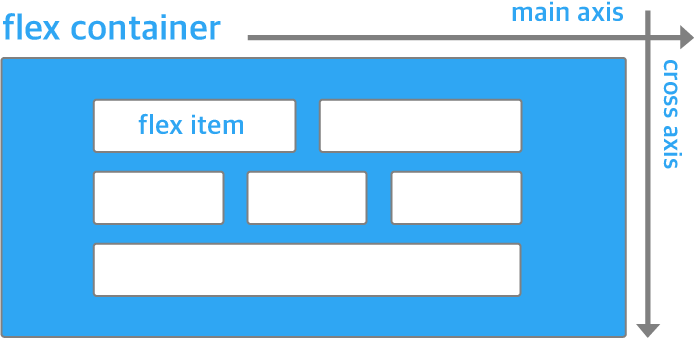
* flex 컨테이너 : 내부 요소들을 flexbox로 배열하기위한 컨테이너
display: flex
flex-flow : direction / wrap
- direction : row / row-reverse / column / column-reverse
- wrap : wrap / nowrap
justify-content : 주축의 정렬방법
align-items : 교차축의 정렬방법
* flex 아이템 : 실제로 flexbox로 배치될 요소들
flex : grow / shirink / basis
'수업자료' 카테고리의 다른 글
| 4. wrap box / 가상선택자 / 특수문자 (2) | 2020.05.19 |
|---|---|
| 3. block 가로배열 / Inline (0) | 2020.05.04 |
| 2. Block요소 (0) | 2020.04.29 |
| 1주차 - 웹기초/html/css (1) | 2020.04.23 |


